Showing posts with label Tweak. Show all posts

Tuesday, 11 January 2011

How To Increase Internet Speed ?

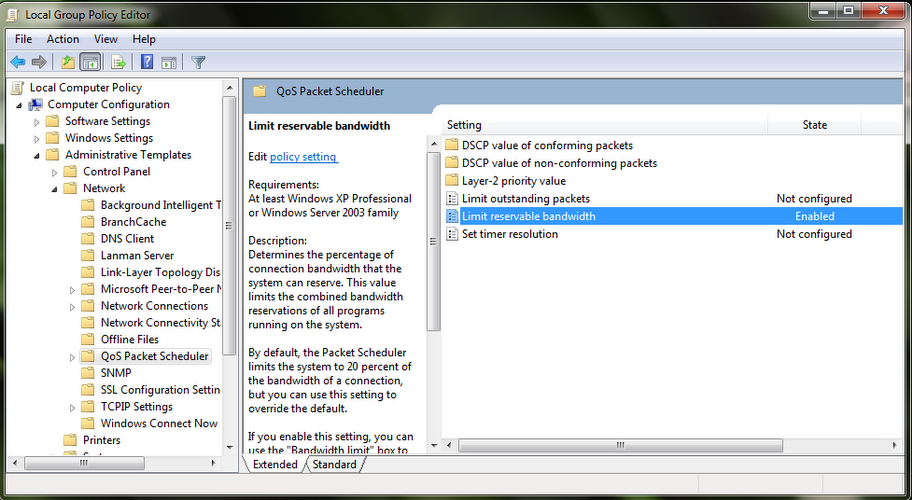
By default system reserves 20% of bandwidth of your internet connection


If you don't wanna be system reserve your speed then do the following

Go to run and type gpedit.msc


In local computer policy go to

Administrative templates\network\QoS packet scheduler


In the right pane you will see the option limit reservable bandwidth

by default it sets to not configured

double click on it and click enable set 20% to 0

All done

See the difference Enjoy...

Monday, 13 December 2010

Use of Ctrl + C can Leak Our Personal Information

Well we all know the use of Ctrl + C of any computer. The use of Ctrl + C has a very great disadvantage sometimes which can leak our personal information and ruin our life. I know this long back but when I read the article about Ctrl + C yesterday in the Times of India newspaper, I thought many people may not be aware of this evil use effect of Ctrl + C. So I am sharing the same article with you today.
Everytime you do a harmless keyboard shortcut Ctrl + C in your computer, the text you copy online may be stolen on the web. This copied data is accessible on the internet when you visit websites that use the combination of javascript and ASP or any server-side-language like jsp, php, from which the data that you copy can be transferred to another server. Most web server. Most web sites are javascript enabled.
Not convinced? Try copying some text and just visit sourcecodesworld.com/special/clipboard.asp, a website  that provides free source codes and projects. You necessarily need not even press the ‘paste’ button. The ‘paste’ happens automatically. The website just provides an example of what could potentially happen to you, especially if you have copied your credit card details, bank details or any other sensitive information.
“This is one of the main reasons that credit card companies and banks ask you not to copy, paste your card and bank details. Everytime you copy some information, it gets stored in your computer clipboard. In case, you end up visiting a malicious site, your information can be easily stolen. This information can be read in a hidden manner, that you will not be aware of it being seen by someone else”.
Sourcecodesworld.com says this hacking can be done by a simple source code. This happens especially if you are using Internet Explorer. One of the ways it can be avoided is to use a better browser because Internet Explorer, one of the most famous browsers has had many technical glitches over the years.

Friday, 23 July 2010

How to Secure a Wireless Network from Hackers?

The reason we secure a wireless network is to stop people from using the services of our network who don't have permission to utilize them. It is harder to secure a wireless network from hackers as compared to a classic wired network. This is due to the fact that a wireless network can be accessed anywhere inside the range of its antenna.
In order to secure a wireless network from hackers, we should take proper steps to save ourselves against security issues. If you don't secure a wireless network from hackers, you might end up without its service. The consequence might also include the utilization of our network to attack further networks. To secure a wireless network from hackers, you should follow these simple wireless networking tips:
1.       Strategic antenna placement:
The first thing you have to do is to position the access point's antenna in a place which restricts the range of its signal to go further than the required area. You should not put the antenna close to a window because glass can't obstruct its signals. Place it in a central location of the building
2.       Use WEP:
WEP stands for Wireless encryption protocol.  It's a customary technique for encrypting traffic on a wireless network. You should never skip it as that will allow hackers to get instant access to the traffic over a wireless network.
3.       Change the SSID, disable the broadcast of SSID:
SSID stands for service set identifier.  It is the recognition thread utilized by the wireless access point due to which the customers are capable of starting connections. For every wireless access point arranged, select an exclusive as well as unique SSID. Also, if it's attainable, hold back the broadcast of the SSID out over the antenna. It won\t appear in the listing of offered networks, while being able to provide services as usual.
4.       Disable DHCP:
By doing this, the hackers will have to decode the TCP/IP parameters, subnet mask as well as the IP address in order to hack your wireless network.
5.       Disable or modify SNMP settings:
Change the private as well as public community settings of SNMP. You can also just disable it. Otherwise the hackers will be able to utilize SNMP to get significant info regarding your wireless network.
6.       Utilize access lists:
For additional security of your wireless network, and if your access point support this feature, employ an access list. An access list lets us determine precisely which machinery is permitted to attach to an access point. The access points which include the access list can employ trivial file transfer protocol (TFTP) now and then in order to download modernized lists to steer clear of hackers.

Tuesday, 23 February 2010

Increase Performance of Computer by disabling Unnecessary Services

Windows automatically starts up some services in the background. Most of these services are unused by common PC users. This tends to slow down the booting time and it can also be heavy on important resources like CPU and RAM. Here are some listed unnecessary services which you can safely disable (if not used) which can speed up the performance of your computer to a certain extent. Try them at your own risk. We would suggest that you check the description of each service on the Internet before you disable them and also try disabling them one at a time.
In order to disable these services..


  1. Go to Control Panel > Administrative Tools > Services
  2. Choose the required service you want to disable
  3. Double Click on the service
  4. Under startup type, Select disable.
In this way you can stop the starting of this unused services which will speed up your computer. The list of unnecessary services is as follows..
  • Alerter,
  • Application Management,
  • Background Intelligent Transfer Service,
  • Clipbook,
  • Error Reporting Service,
  • Fast User Switching,
  • IMAPI CD-Burning COM Service,
  • Indexing Service,
  • IP SEC,
  • Messenger,
  • Net Logon,
  • Network DDE,
  • NT LM Security Support Provider,
  • Performance Logs and Alerts,
  • Portable Media Serial Number,
  • QOS RSVP,
  • Remote Desktop Help Session Manager,
  • Remote Registry,
  • Routing & Remote Access,
  • Secondary Login,
  • Smart Card,
  • Smart Card Helper,
  • SSDP Discovery Service,
  • TCP/IP NetBIOS Helper,
  • Telnet,
  • Uninterruptible Power Supply Service,
  • Universal Plug and Play Device Host,
  • Upload Manager,
  • Volume Shadow Copy Service,
  • Web Client,
  • Wireless Zero Configuration,
  • WMI Performance Adapter.

Friday, 30 January 2009

How to recover the Permanently deleted Outlook lMails

Hi All,
Procedure to recover shift deleted [permanently deleted] mails from Microsoft Outlook.

1) First go to Run and type regedit
2) Go to: \HKEY_LOCAL_MACHINE\SOFTWARE\MICROSOFT\EXCHANGE\CLIENT\OPTIONS registry key.
3) Right click options and add new DWORD VALUE (data type is REG_DWORD) and then right click and rename to DumpsterAlwaysOn. It is case sensitive.
4) Then rights click and modify and make the value 1 to turn the Recover Deleted Items menu choice on for all folders or enter 0 to turn it off.
5) Then go to Outlook , choose "Recover deleted items" option from the Tools Menu to get back your "permanently deleted" mails!

Note : This procedure can recover mails which were deleted by pressing shift+del in the past 7 days

Sunday, 25 January 2009

How to disable auto-start applications on windows startup?

Hi friends,
It may be frustrating, if it takes time to start up your computer. The reason behind is that many applications or programs loads automatically when the computer starts. I obviously don’t like this applications because it delays the startup of my computer. So i disable most of the auto-start applications except the anti-virus application.
So by using this tip, you can minimize the startup time of windows XP and Vista. You can disable some Windows optional applications which you rarely use like windows messenger, yahoo messenger, Quick time, Sound Man and many other auto-start up programs that run automatically when you start your computer.
Follow the given steps to disable the windows auto-startup applications:
To use this features, you will need to be logged into your computer with administrative rights.
Click start button and type msconfig in Run option then hit Enter for next.
The pictures are taken from Windows XP
msconfig, auto-startup, windows XP statrp-up, windows XP msconfig


A small System Configuration Utility dialog box will appear with many options like General, System.ini, Win.ini, Boot.ini, Services and Startup.
Now Select Startup tab and uncheck the applications that you want to disable from windows startup.

startup, auto-startup, windows start-up, windows XP startup, msconfig, windows XP msconfig

Now click on Apply button to implement the changes then click on OK button to end the configuration process.
Again close the all programs and restart your computer after any changes to go into effect.